Staffig lets organizations organize teamwork, track project budgets, and log employee hours. Follow the steps below to easily use its project management feature.
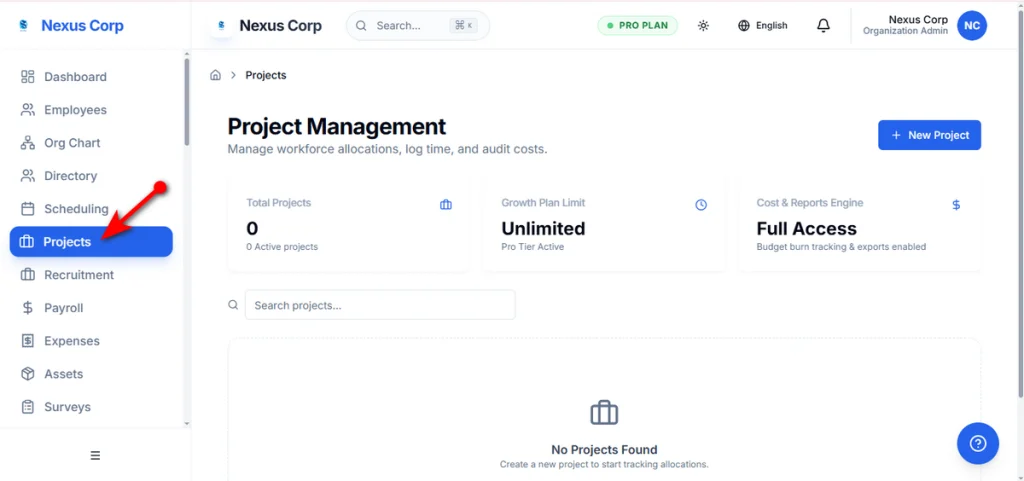
- Click ‘Projects’ in the left navigation sidebar. You’ll notice the “Project Management” screen.
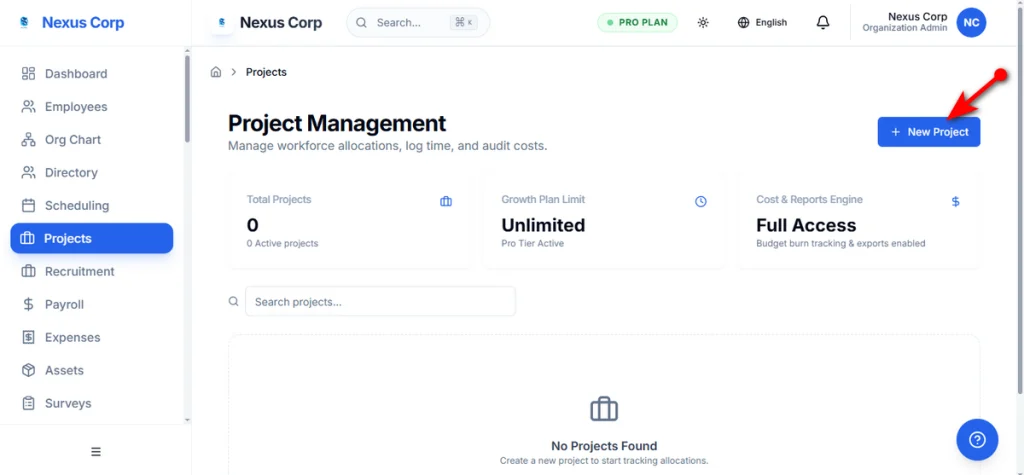
- Now, hit the “+ New Project” button at the top right.
A modal titled “Create New Project” will appear.
- Now, fill in the following fields in the project form:
- Project Name: Type a clear name for your project.
- Client Name: Enter the client or company name, or leave as internal.
- Start Date: Choose the day the project begins.
- End Date: Pick the planned finish date.
- Status: Select ‘Active,’ “On Hold,” or ‘Completed.’
- Project Manager: Pick a team leader from the dropdown list.
- Budget ($): Enter the total budget amount.
- Budget Type: Choose “Fixed Price” or “Calculated Hourly.”
- Project Description & Milestones: Write project goals, key milestones, and notes. You can use AI for drafting that if you’ve already connected AI with Staffig.
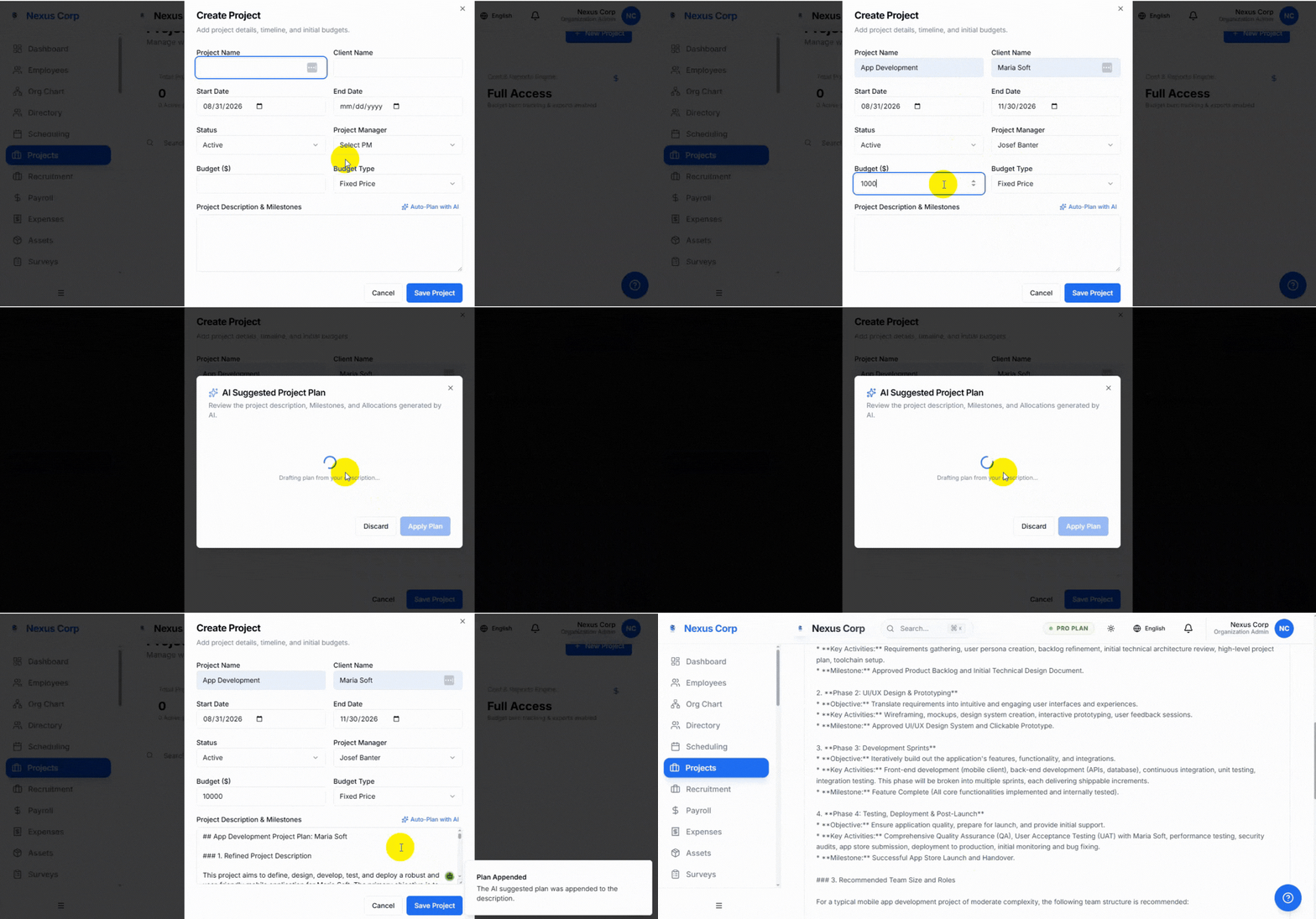
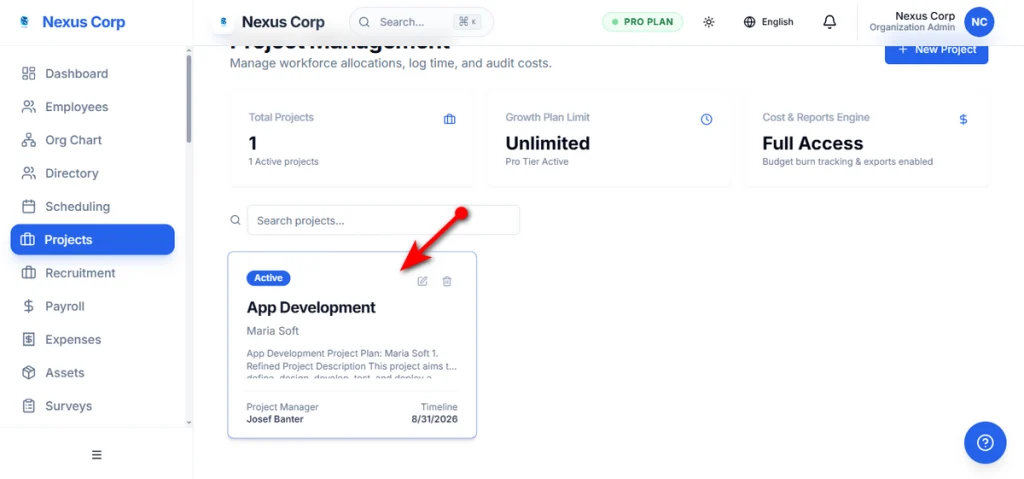
- Finally, click the “Save Project” button. The new project card will show up in the project grid.
How to Manage Team Assignments and Log Time
Here’s how to manage team assignments.
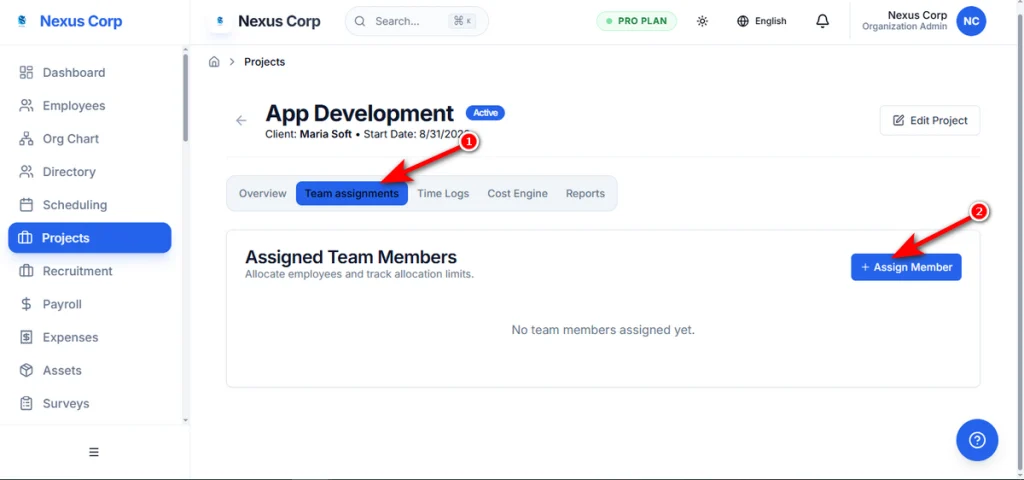
1. Click any project card to open its detail dashboard.
2. Click the “Team assignments” tab to allocate team members with custom percentages. Then, hit the ”+ Assign Member” button.
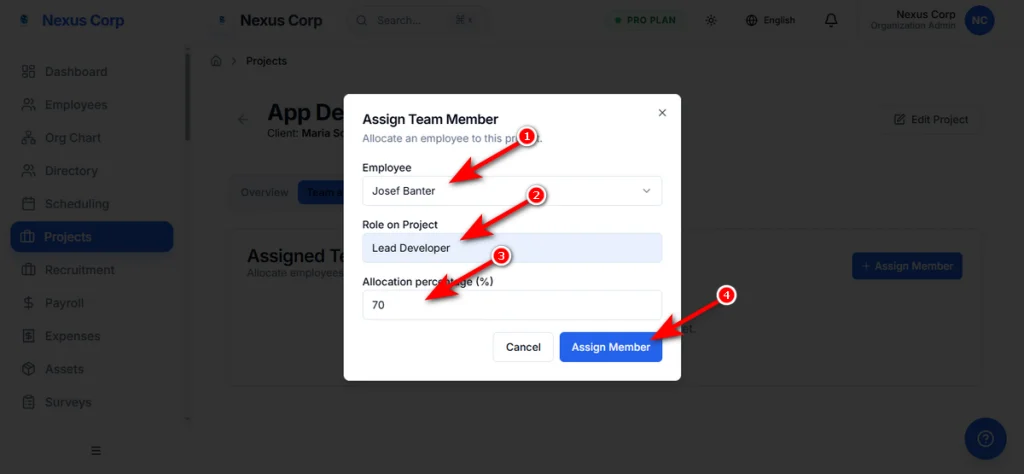
3. Then, select the team member from the ‘Employee’ dropdown menu.
4. Enter their specific designation in the “Role on Project” field (e.g., Lead Developer).
5. Specify their workload capacity in the “Allocation percentage (%)” field.
6. Click the blue “Assign Member” button to confirm and save the assignment.
How to Use Time Logs
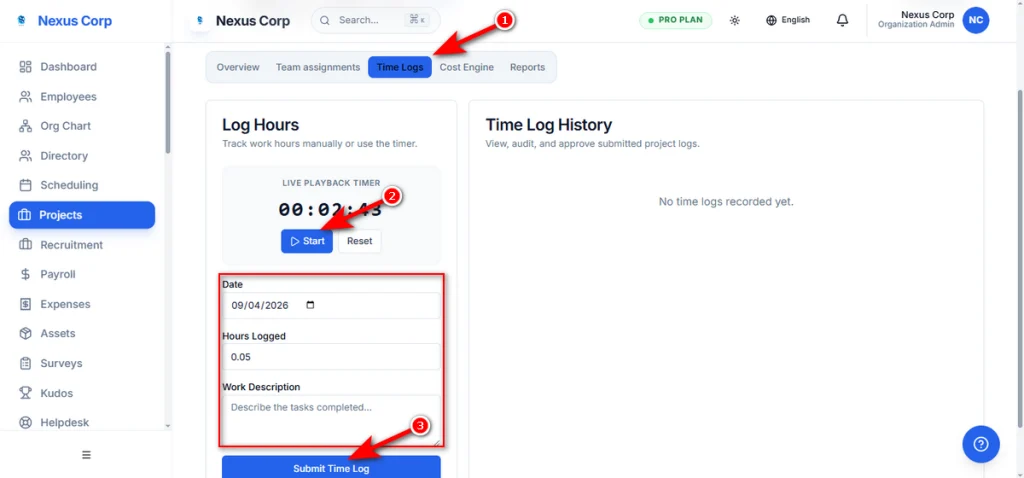
Switch to the “Time Logs” tab from the top navigation bar. Then, use the “Live Playback Timer” by clicking the ‘Start’ button to track hours in real time (or click ‘Reset’ if needed).
Fill in the log details below:
- Date: Select the work date from the date picker.
- Hours Logged: Enter or review the total hours worked.
- Work Description: Type a brief summary of the completed tasks.
Click the “Submit Time Log” button to record your entry into the “Time Log History.”
How to Use Cost Engine
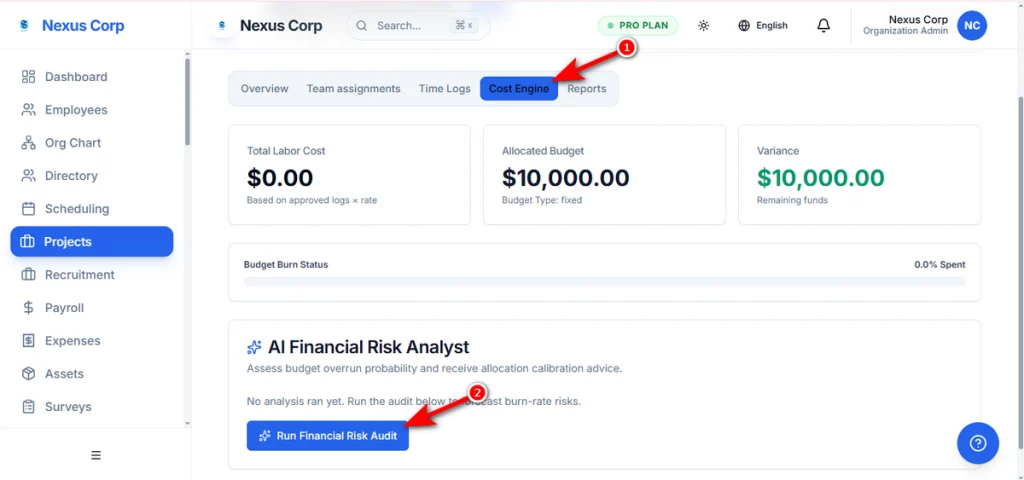
1. Navigate to the “Cost Engine” tab from the top project navigation bar.
2. Review your real-time financial overview metrics, including “Total Labor Cost,” “Allocated Budget,” ‘Variance,’ and the “Budget Burn Status” progress bar.
3. Under the “AI Financial Risk Analyst” section, click the “Run Financial Risk Audit” button to generate burn-rate risk projections and allocation insights.
Key Benefits of the Cost Engine
- Real-Time Burn Rate Visibility: Instantly tracks labor expenditure against fixed budgets based on approved logs and billing rates, preventing scope creep before it happens.
- Automated Financial Risk Audits: Uses predictive analysis to calculate budget overrun probabilities and flags high-risk allocation patterns early in the project lifecycle.
- Proactive Resource Calibration: Delivers actionable recommendations to rebalance workloads and adjust team allocations before financial thresholds are breached.
- Zero Guesswork Forecasting: Replaces manual spreadsheet calculations with dynamic, live metrics that update automatically as hours are logged and approved.
Note: To run the AI Financial Risk Audit, you must first connect an AI provider with Staffig in your workspace integrations settings.
Disclaimer: AI-generated assessments and recommendations are predictive estimations and can make mistakes. Always cross-verify critical financial projections and risk audits with your internal accounting records.
How to Use Reports
Click the ‘Reports’ tab from the top project navigation bar. Then, choose your desired reporting format and click the corresponding download icon:
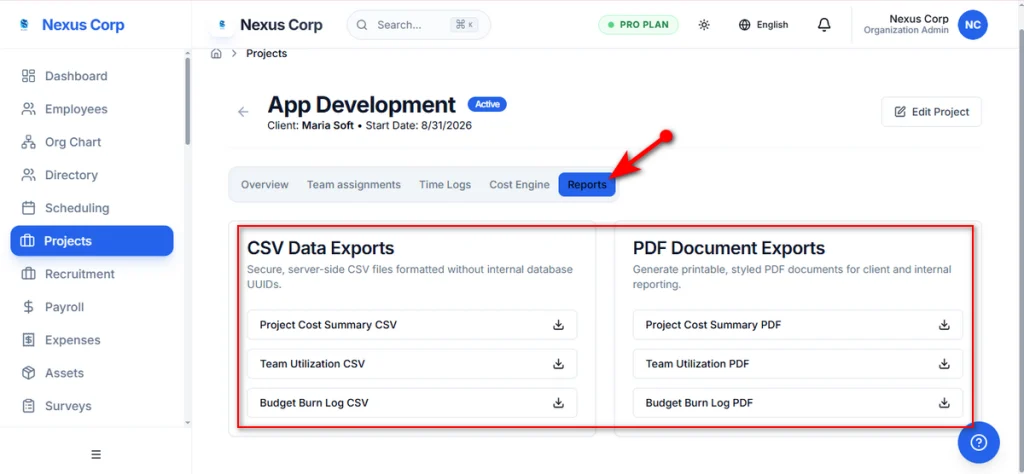
CSV Data Exports: Download raw, server-side data files formatted cleanly without internal database UUIDs for spreadsheet analysis:
- Project Cost Summary CSV: High-level breakdown of overall spend and billable hours.
- Team Utilization CSV: Granular workload allocation and individual productivity metrics.
- Budget Burn Log CSV: Chronological records of financial burn rate against allocated funds.
PDF Document Exports: Generate printable, presentation-ready styled documents tailored for stakeholders and internal audits:
- Project Cost Summary PDF: Executive cost summaries suitable for client billing reviews.
- Team Utilization PDF: Visual summaries of team resource distribution.
- Budget Burn Log PDF: Formal audit logs mapping ongoing burn status.