Staffig lets hiring teams post open jobs and track job applicants across every stage. Here’s how to use it.
Step 1: Open the Recruitment Module
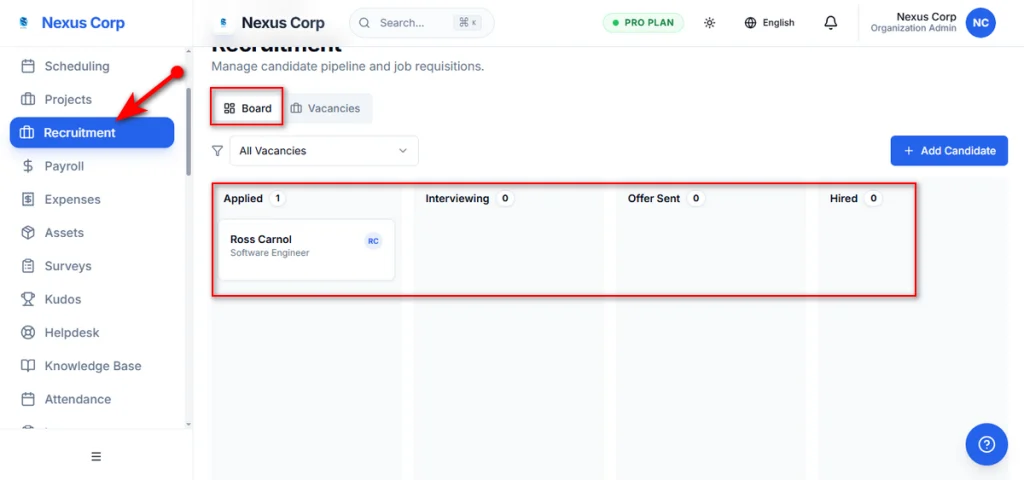
Click ‘Recruitment’ in the left sidebar. You’ll see two main tabs: ‘Board’ and ‘Vacancies.’
The ‘Board’ tab shows job candidates across pipeline columns like ‘Applied,’ ‘Interviewing,’ ‘Offer Sent,’ and ‘Hired.’
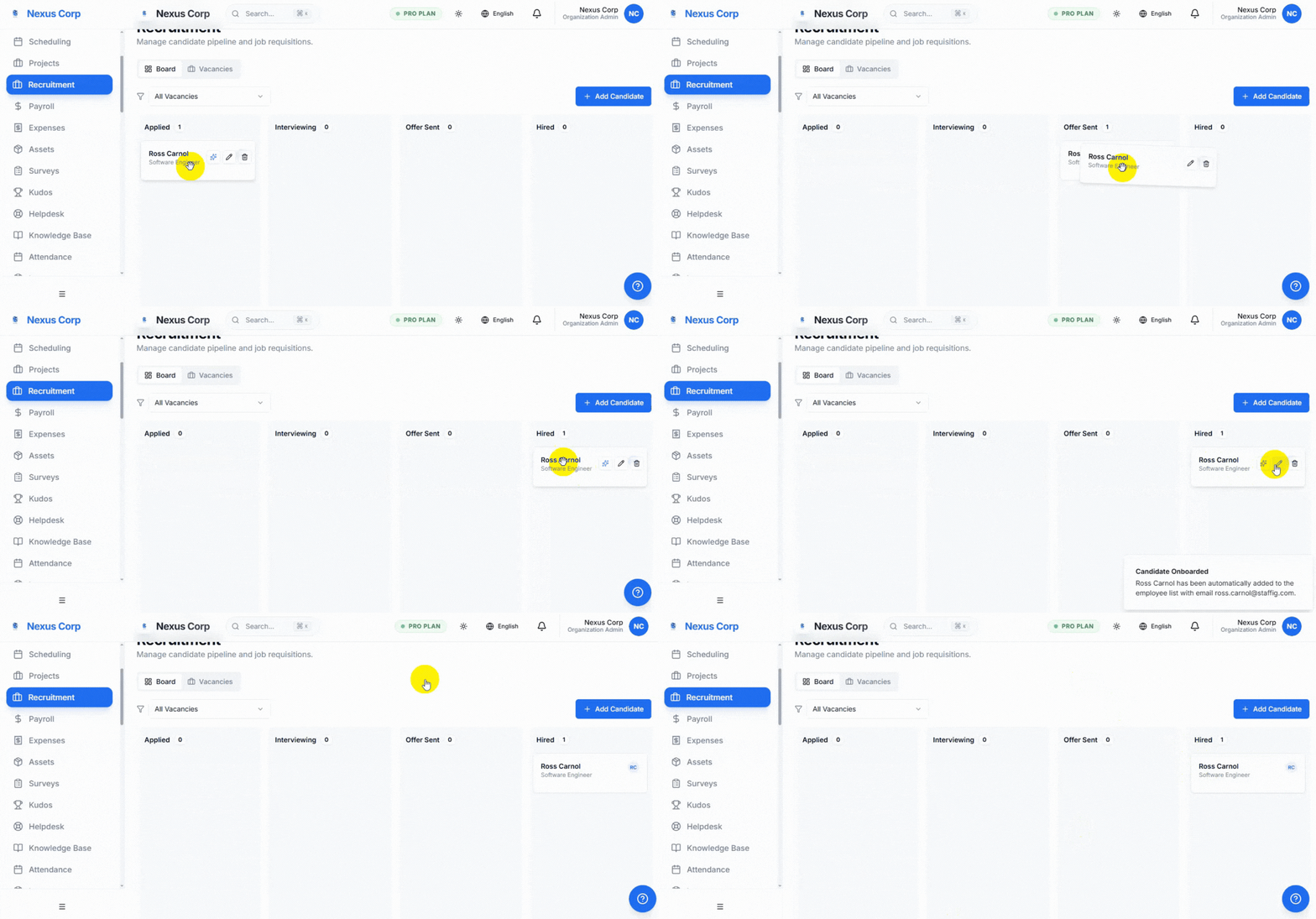
Drag and drop candidate cards between columns to update their interview stage.
Step 2: Screen Candidates with AI CV Matcher
Staffig also includes an AI CV Matcher to assess how well an applicant fits your open job requirements. Here’s how to use it:
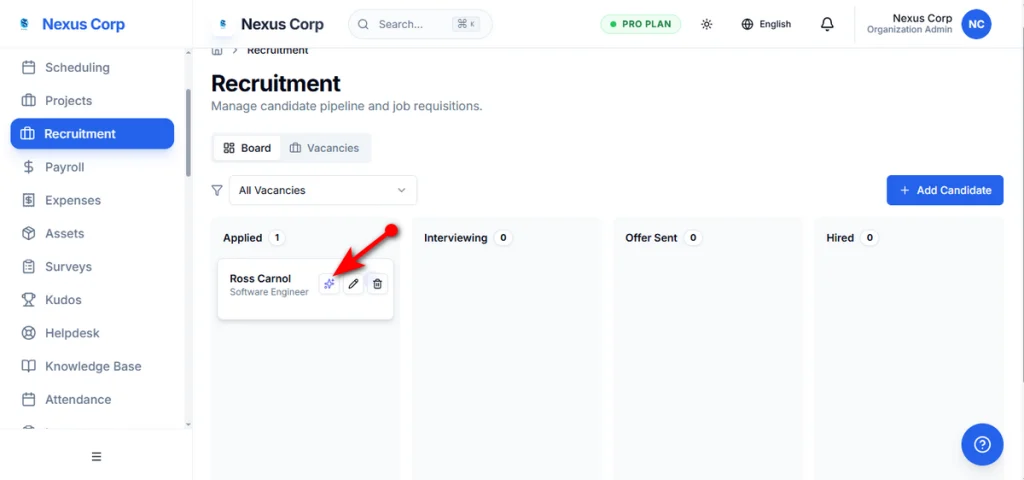
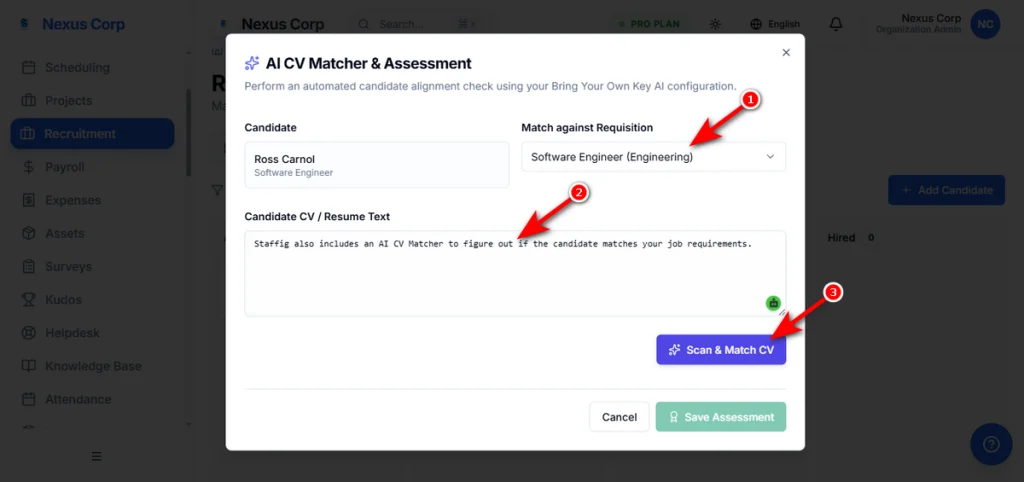
- On the ‘Board’ tab, locate the candidate’s card in the pipeline. Click the “sparkle/star icon” on the card. A modal titled “AI CV Matcher & Assessment” will open.
- Set your assessment parameters:
- Match against Requisition: Select the target job role from the dropdown menu (e.g., Software Engineer (Engineering)).
- Candidate CV / Resume Text: Paste the applicant’s resume content or work experience summary into the text box.
- Click the “Scan & Match CV” button.
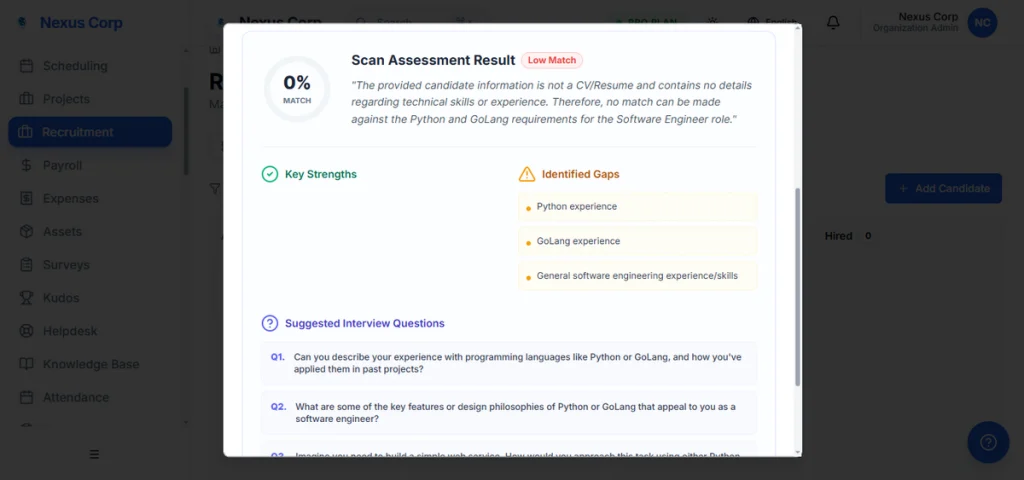
The AI will analyze the candidate’s details and generate a Scan Assessment Result breakdown showing:
- Match Percentage: An overall compatibility score (e.g., High Match, Low Match).
- Key Strengths & Identified Gaps: A side-by-side view highlighting matched competencies and missing skills required for the role.
- Suggested Interview Questions: Tailored questions generated to help you probe specific experience gaps during the interview.
- Review the results, then click “Save Assessment” to store the evaluation on the candidate’s profile.
Step 3: Open the Vacancies Tab
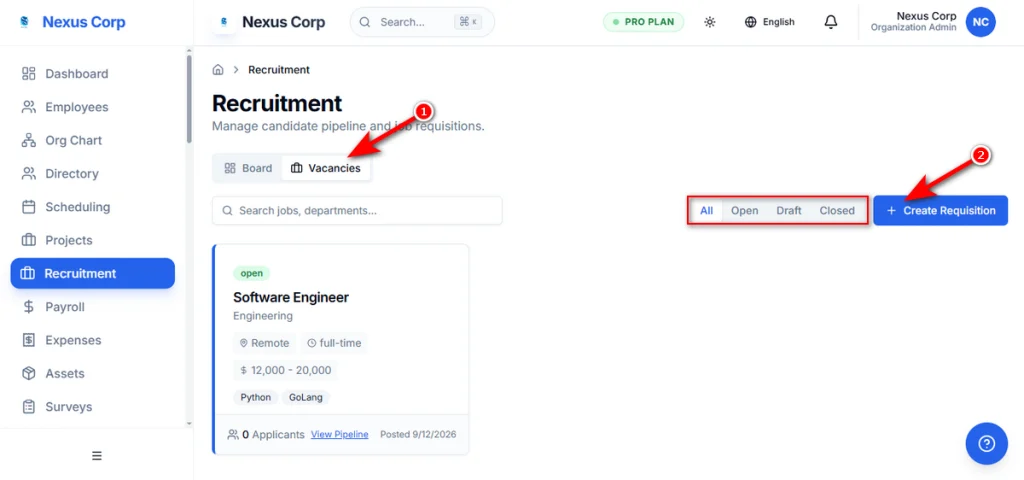
Click the ‘Vacancies’ tab to view all company job openings.
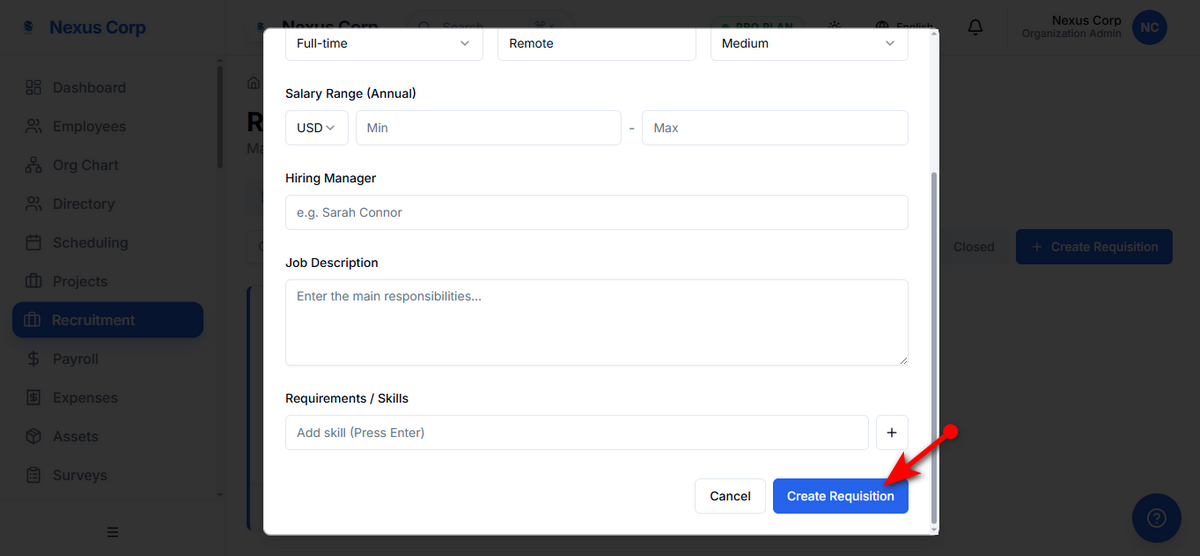
Click the “+ Create Requisition” button in the top right corner. A modal titled “Create New Job Requisition” will open.
Step 5: Fill in Job Details
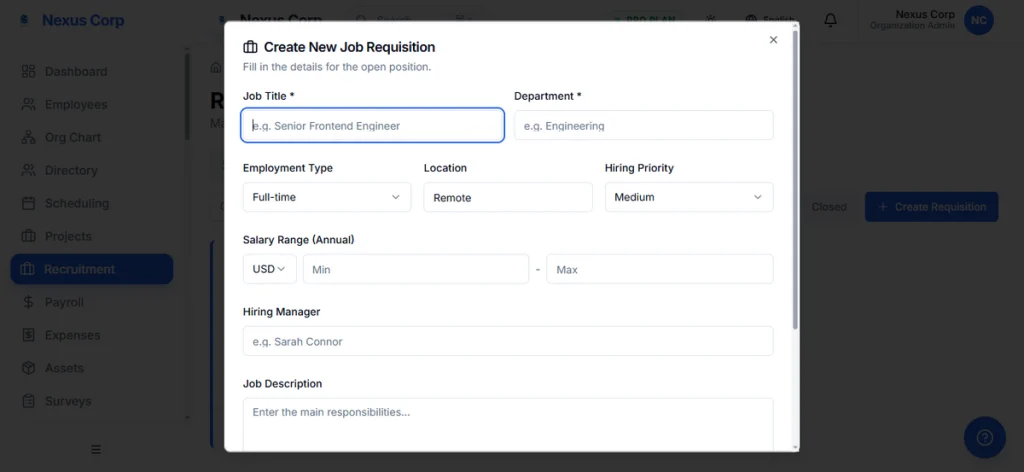
Enter the job information in the form:
1. Job Title: Type the official title for the position.
2. Department: Enter or select the team department.
3. Location: Type the office city or select Remote.
4. Employment Type: Choose “Full-time,” “Part-time,” ‘Contract,’ ‘Freelance,’ or ‘Internship.’
5. Priority: Choose ‘Low,’ ‘Medium,’ ‘High,’ or ‘Urgent.’
6. Salary Range: Set minimum salary, maximum salary, and currency.
7. Description: Write a clear summary of daily responsibilities.
8. Requirements: Type required skills and click “+ Add” to attach tags.
Step 6: Publish the Job Opening
Click “Create Requisition.” The new opening will show on the vacancies list immediately.