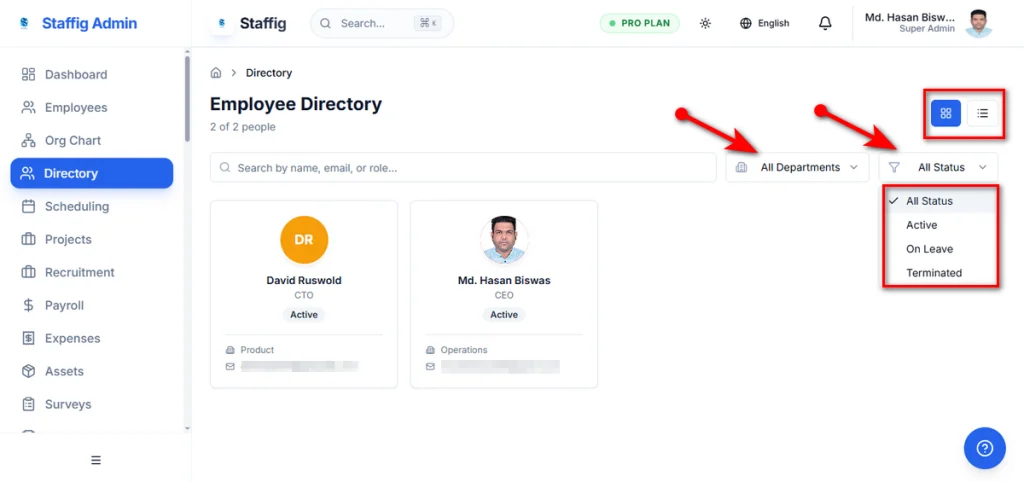
The Employee Directory provides a quick overview of all team members across your company, complete with contact details, department designations, and status filters.
Step 1: Navigate to Directory
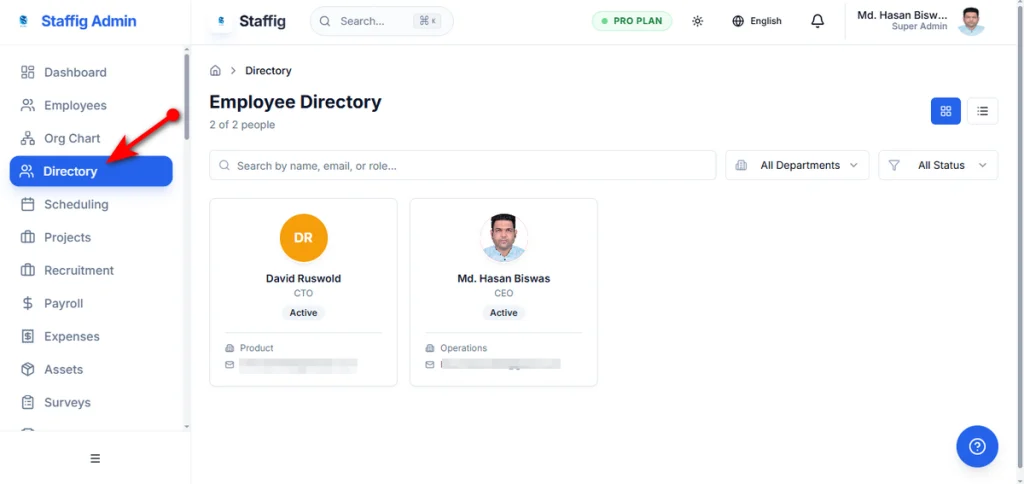
From the left sidebar, click on ‘Directory.’ This will open the “Employee Directory” page.
Step 2: Search and Filter Employees
You can quickly locate team members using the controls at the top of the directory:
- Search Field: Type in the “Search by name, email, or role…” bar to filter results instantly.
- Filter by Department: Click the “All Departments” dropdown to view employees belonging to a specific department.
- Filter by Status: Click the “All Status” dropdown to filter employees by their current status:
- All Status
- Active
- On Leave
- Terminated
Step 3: Switch Between Directory Views
At the top right of the directory page, use the view toggle buttons to switch layout modes:
- Grid View (Default): Displays team members as individual visual cards showing their picture, name, role, status tag (e.g., Active), department, and email address.
- List View: Displays employees in a structured list format for compact browsing.