Staffig provides an interactive organization chart that gives you a clear visual breakdown of your company hierarchy and reporting lines.
Step 1: Navigate to Org Chart
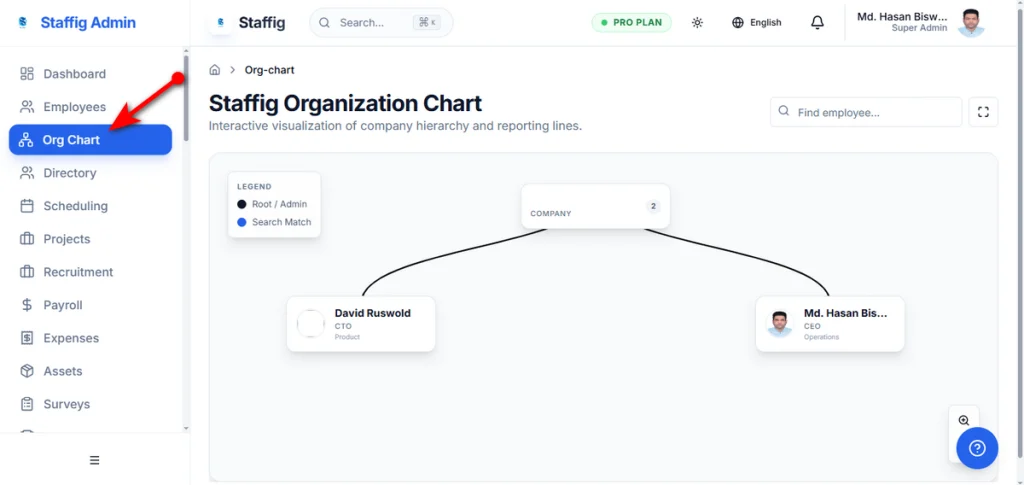
From the left sidebar, click on “Org Chart.” This will take you to the “Staffig Organization Chart” page.
Step 2: Explore the Hierarchy
On the main display area, you will see your company structure presented visually:
- Company Node: Displays your company root and the total employee count.
- Employee Cards: Each card illustrates the employee’s picture (or avatar), full name, designated title/role (e.g., CTO, CEO), and department (e.g., Product, Operations).
- Reporting Lines: Connecting lines visually map out who reports to whom within the organization.
Step 3: Search and Navigate
- Find Employee: Use the “Find employee…” search input located at the top right of the chart section to quickly highlight a specific team member.
- Legend: Refer to the ‘LEGEND’ box on the top left to distinguish between Root / Admin nodes and active Search Match results.
- Zoom & Fullscreen: Use the zoom controls in the bottom-right corner or click the full-screen icon in the top-right corner to adjust your view.